

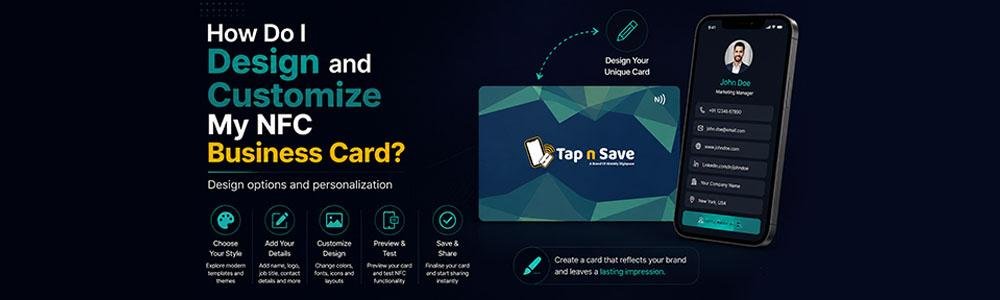
Designing an NFC Business Card is not just about adding your name and phone number. It's about creating a smart networking tool that represents your brand and helps people connect with you instantly.
Modern NFC cards combine attractive design with digital technology. You can customize the card's material, colors, logo, QR code, and the digital profile that opens after tapping.
At Tap n Save, customers can fully personalize their NFC Business Cards to match their profession, business identity, and networking goals.
📌 Quick Answer
To design an NFC Business Card, choose the card material, add your logo and branding, select colors and fonts, include a QR code, and create a digital profile containing your contact details, social media, website, and payment links.
Step 1: Choose the Right Card Material
The first step is selecting the material of your NFC card.
| Material | Best For | Price Range |
|---|---|---|
| PVC NFC Card | Professionals, startups, sales teams | ₹799 – ₹1,499 |
| Metal NFC Card | Executives, founders, luxury brands | ₹1,999 – ₹5,000+ |
PVC cards are lightweight and affordable, while Metal NFC Cards offer a premium look and create a strong first impression.
Step 2: Add Your Brand Identity
Your NFC card should reflect your brand just like your website or office stationery.
🎨 Brand Colors
Use your company's colors for consistency.
🖼 Company Logo
Add your logo prominently to improve brand recognition.
🔤 Fonts
Choose clean and professional typography.
📷 Profile Photo
Add your photo if personal branding is important.
Step 3: Include a QR Code
While NFC works on most smartphones, adding a QR code ensures maximum compatibility.
People can either:
- Tap the card using NFC
- Scan the QR code using the phone camera
💡 Best Practice
Tap n Save NFC cards include both NFC and QR technology, ensuring your card works across almost every smartphone.
Step 4: Customize Your Digital Profile
The physical card is only one part of the experience. The digital profile that opens after tapping is equally important.
You can include:
- Phone Number
- Email Address
- Website
- WhatsApp Chat Button
- Instagram, LinkedIn & Facebook
- Google Maps Location
- UPI & Payment Links
- Portfolio or Product Catalog
- Google Review Link
Design Ideas for Different Professionals
For example:
- Lawyers: Elegant black or navy PVC cards with gold accents.
- Doctors: Minimal white designs with appointment booking links.
- Real Estate Agents: Include property listings and WhatsApp chat.
- Entrepreneurs: Use premium metal cards for stronger branding.
Can I Change the Design Later?
The physical design of the card cannot usually be changed after printing.
However, the digital profile connected to the card can be updated anytime.
♾ Unlimited Digital Updates
With Tap n Save, you can update your contact details, social links, payment information, and other profile details unlimited times without changing the physical card.
Tips for Designing an Effective NFC Business Card
- Keep the design clean and uncluttered.
- Use high-resolution logos and images.
- Include both NFC and QR code.
- Use brand colors consistently.
- Make sure your digital profile is complete.
- Highlight your key services and social media links.
Frequently Asked Questions
-
Can I customize my NFC Business Card?
Yes. You can customize colors, logo, card material, QR code, and digital profile. -
Which material is better: PVC or Metal?
PVC is affordable and durable, while Metal NFC Cards offer a premium appearance. -
Can I include social media links?
Yes. Instagram, LinkedIn, Facebook, YouTube, and other links can be added. -
Can I update my information later?
Yes. Tap n Save allows unlimited profile updates. -
Do NFC cards also have QR codes?
Yes. Tap n Save cards include QR codes for maximum compatibility.
Design Your Personalized NFC Business Card
Create a smart NFC Business Card that reflects your brand and helps you share your contact details instantly.
Customize Your NFC Card →